Your releases in the calendar you already use
Episodely gives you an address to paste into Google Calendar, Apple Calendar, Outlook or Thunderbird: the next releases of what you follow — episodes, the movies you are waiting for and Formula 1 sessions — appear there, alongside the rest of your week. No app to install.
First things first: get your link
- Sign in to Episodely and open your account Settings.
- Find the calendar feed block and generate the link, if you haven't already.
- Press «Copy»: that link is what every step below needs.
That link is personal: whoever has it can see your library's releases, no password needed. Treat it like a key and don't publish it. If it slips out, the «Regenerate» button in settings invalidates it instantly.
Google Calendar
You add it from a computer, in the browser. The Google Calendar app on Android and iPhone cannot do it — but once added from a computer, the calendar shows up on your phone too.
- Open calendar.google.com on a computer.
- In the left column, next to «Other calendars», press the +.
- Choose «From URL».
- Paste the link you copied from Episodely and press «Add calendar».
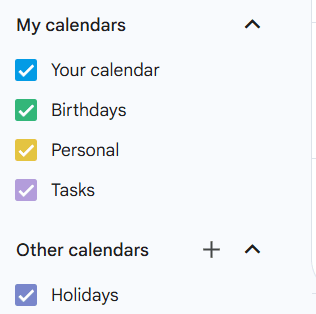
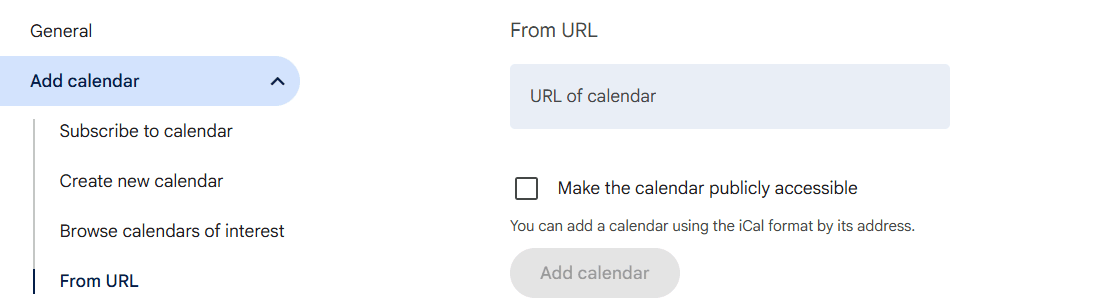
When it refreshes: Google decides, not us. Several hours can pass between an episode airing and the event showing up. It is not a setting you can change — if you want faster refreshes, Apple Calendar lets you pick.
If nothing happens after adding it, the link was almost certainly copied halfway: it has to end with the «?t=» part followed by a long sequence of characters.
Apple Calendar (iPhone, iPad, Mac)
- On iPhone or iPad: open Calendar, tap «Calendars», then «Add Calendar» and «Add Subscription Calendar». Paste the link, tap «Find», name it and confirm.
- On Mac: open Calendar, then File → «New Calendar Subscription». Paste the link and press «Subscribe».
The Mac dialog also has a menu to choose how often the calendar is re-read: that is where you set it if you want releases as early as possible.
Opening the link on an Apple device with «https» replaced by «webcal» takes you straight to the subscription dialog.
Outlook (web and app)
- Open Outlook and go to Calendar.
- Press «Add calendar» and choose «Subscribe from web».
- Paste the link, name the calendar and confirm.
Thunderbird
- Go to Calendar and choose «New Calendar».
- Select «On the Network», then the «iCalendar (ICS)» format.
- Paste the link and finish the wizard.
If something looks off
I added the calendar but new episodes don't show up.
External calendars are not re-read immediately: every app decides on its own how often to do it. Google can take several hours and does not let you choose; Apple does, from the subscription dialog on the Mac. Wait for one refresh cycle before assuming something is broken.
Do these events make me look busy?
No, and that is deliberate: they are marked as free time, so anyone checking your availability still sees you as free.
Can I give the link to someone else?
Better not: that link is personal and shows your library's releases to anyone holding it. If it slipped out, open your settings and press «Regenerate» — the old link stops working instantly.
How do I remove it?
You can remove the calendar from the app where you added it, or turn the feed off in Episodely. The difference matters: turning it off in Episodely kills the link everywhere, including places where you added it and forgot.
Do I have to pay for this?
No. The calendar feed is included for everyone and needs no paid plan — it is a feature that elsewhere is often reserved for paying members.
Didn't find your answer? Write to us from the help center.